

So, you’ve just unboxed your brand-new Mac?
Congratulations!
Whether you’re a first-time Mac user or upgrading from an older model, configuring it properly is key to ensuring smooth performance and a productive experience.
In this guide, we share the essential settings and tips to optimize your new Mac in 2025, covering trackpad tweaks, security integrations, performance tools, Dock customizations, and more.
Personalize Your Trackpad and Mouse Settings for Precision
One of the first areas to optimize on your new Mac is your input devices. By default, the trackpad requires a firm press to register a click, which can become tiring over long working hours. To make it more comfortable, enable Tap to Click by heading to System Settings > Trackpad and toggling the option at the bottom.
Right-clicking is essential for efficient workflow, especially when transitioning from Windows. For trackpads, set Secondary Click to “Click or tap with two fingers” to access contextual menus quickly. If you’re using an external mouse, ensure Secondary Click is set to “Click right side” to mimic the Windows right-click function you’re used to.
Don’t forget to adjust your tracking speed under both Trackpad and Mouse settings. A faster tracking speed feels snappier and helps navigate large screens with ease. Additionally, enable Three Finger Drag in System Settings > Accessibility > Pointer Control > Trackpad Options. This hidden feature allows you to move windows or files effortlessly with a three-finger swipe, rather than using click-and-drag motions.
For external mouse users, especially with Bluetooth mice like Logitech, install Mous for Mac. This free utility enhances scrolling smoothness and resolves the choppy scrolling often experienced with third-party mice on macOS, providing a more seamless navigation experience overall.
Enhance Security and Convenience with Touch ID and Apple Watch
Beyond input settings, it’s crucial to set up your Mac’s security features for convenience and safety. If your Mac has Touch ID, you can add multiple fingerprints to make unlocking and authenticating purchases faster. Go to System Settings > Touch ID & Password and register up to three fingerprints, including both thumbs and index fingers for flexibility.
Apple Watch users can take their convenience a step further. By enabling Unlock with Apple Watch under the same Touch ID settings, your Mac will automatically unlock when it detects your watch nearby. This feature is a huge time-saver, especially when working in an environment where you frequently step away from your laptop or desktop.
These features not only enhance security but also streamline your login process without compromising on protection. You no longer need to type in your password repeatedly or wait for Face ID, as with an iPhone; simply open your Mac and start working immediately.
Configuring these security options on day one ensures you’re maximizing your Mac’s built-in hardware. Touch ID also integrates with Apple Pay, App Store purchases, and password autofill, making everyday tasks smoother by adding all fingerprints you use regularly.
Boost Performance with CleanMyMac for System Maintenance
Keeping your Mac clean and optimized is crucial to maintaining its longevity and optimal performance. CleanMyMac by MacPaw remains one of the best tools for this purpose. It helps remove junk files, system cache, old logs, and leftover development files that accumulate silently over time, slowing down your machine.
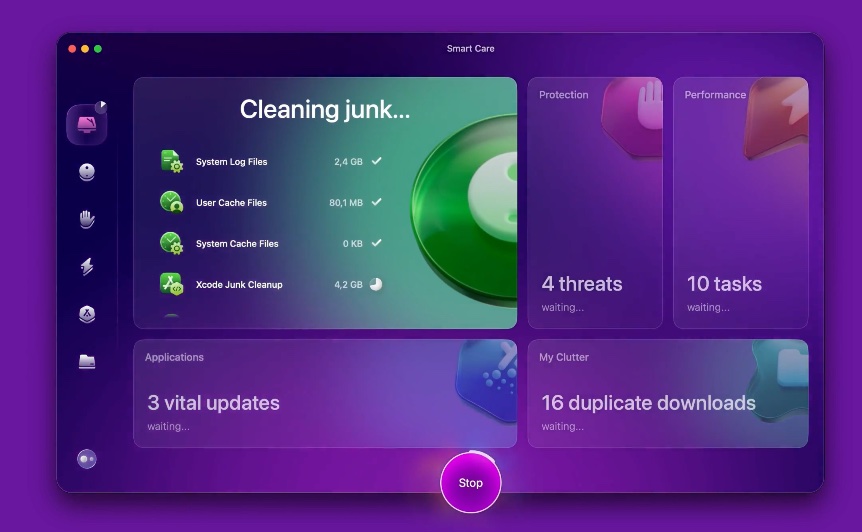
CleanMyMac’s Smart Care feature runs quick scans and identifies large files or duplicate content that may be occupying your storage space. Its Moonlock-powered antimalware engine also protects your Mac by scanning for malicious software and vulnerabilities, keeping your system secure.
One standout feature is My Clutter, which helps clear out duplicate and similar photos, downloads, and unused files, freeing up gigabytes of space. CleanMyMac also provides performance tips, including battery optimization reminders and temperature warnings, to help your Mac stay efficient even under heavy workloads.
You can download CleanMyMac from MacPaw’s official website, the Mac App Store, or via Setapp, where it’s often available with a 7-day free trial. For those managing large files, creative projects, or development work, investing in a tool like CleanMyMac is a worthwhile consideration.
Customize Your Dock to Streamline Workflow
The Dock is central to macOS productivity, and optimizing it enhances your daily experience. Start by enabling “Automatically hide and show Dock” in System Settings > Desktop & Dock. This frees up screen space, especially on smaller MacBook displays, by hiding the Dock when not in use.
For a smoother visual effect, change the “Minimize windows using” option from Genie effect to Scale effect. This speeds up the animation when minimizing windows, making multitasking feel faster. Additionally, configure double-clicking a window title bar to “Tile window to screen,” maximizing your workspace efficiently without manually dragging windows.
Keep your Dock clean by removing suggested and recent apps. These often clutter the Dock with icons you don’t use frequently. Additionally, consider removing the Downloads folder from the Dock if you prefer to access it directly via Finder. Remember, removing an app or folder from the Dock does not delete it from your Mac.
In Mission Control settings, enable “Group windows by application.” This keeps multiple windows from the same app organized together, making it easier to manage workspaces, especially if you often have several Safari or Finder windows open simultaneously.
Optimize Display Brightness and True Tone for Comfort
Your display settings play a significant role in reducing eye strain and ensuring color accuracy for your work. Disable automatic brightness adjustment in System Settings > Displays if you find your screen becomes too dark, especially in mixed lighting environments. Set your preferred brightness manually for a consistent viewing experience.
Under Settings > Battery > Options, disable “Slightly dim the display on battery” to maintain consistent brightness even when the device is unplugged. This ensures visual clarity during productivity sessions, eliminating the need for frequent manual adjustments.
Review the True Tone settings to determine if they suit your workflow. While True Tone adjusts your screen’s color warmth based on ambient lighting for a more natural look, graphic designers or photographers may prefer disabling it for accurate color representation in editing tasks.
Adjusting these display settings enhances comfort during extended use, especially when working late nights or in dim environments. Optimal brightness and color calibration ensure your eyes remain comfortable and your outputs remain accurate.
Fine-Tune Finder for Efficient File Management
Finder is your Mac’s command center, so customizing it is essential. Access Finder settings by opening a Finder window and pressing Command-Comma. Under General, change the default location for new Finder windows from Recents to Desktop, Documents, or your preferred folder to save time navigating.
Hide external disks, CDs, and iPods from the desktop under Finder’s preferences to keep your workspace clutter-free. Enable iCloud Drive sync for Desktop and Documents to access your files seamlessly across all Apple devices, improving workflow flexibility.
In Finder’s Advanced settings, enable “Show all filename extensions.” This provides clarity on file types, which is especially useful when working with different document, image, or development file formats. Also, set “Remove items from Bin after 30 days” to automate Trash cleanup and free up space periodically.
Finally, change “When performing a search” to “Search the current folder” for more targeted search results. This tweak ensures that searches in Finder remain focused, avoiding overwhelming results from your entire Mac unless necessary.
Personalize Finder Toolbar for Quick Access
Enhance productivity by customizing the Finder toolbar. Right-click on the toolbar and select Customize Toolbar to add, remove, or rearrange icons. Add frequently used items, such as AirDrop, New Folder, or apps and files, by holding the Command key and dragging them into the toolbar.
Enable “Show Path Bar” under the View menu to view the folder path at the bottom of Finder windows, making navigation easier when working within deep file hierarchies. Also, enable Show Status Bar to view the number of items in folders and available storage space at a glance.
Switch your Finder layout to List View for a cleaner, more organized interface. List View displays file details clearly, reducing visual clutter compared to icon view, which is ideal for professionals working with multiple file types and project folders.
These toolbar and view customizations save valuable seconds with every file management task, streamlining your entire macOS workflow.
Optimize Siri and Safari for Smart Productivity
If you use Siri, activate it in System Settings > Siri & Spotlight. However, consider disabling “Listen for” phrases to conserve battery and prevent accidental activations, opting instead to trigger Siri manually via the menu bar or a keyboard shortcut.
For Safari, enable the Favorites Bar by going to View > Show Favorites Bar to keep your bookmarks accessible. Also, in Safari Settings, disable “Open safe files after downloading.” This prevents downloaded files from opening automatically, giving you more control over what launches on your Mac.
These tweaks may seem small, but they enhance your browsing safety and user experience significantly. Less auto-launching means fewer interruptions, and optimized Siri settings mean smarter assistance without draining battery in the background.
Change Default Apps for File Types to Suit Your Workflow
Setting your preferred apps to open specific file types streamlines your daily tasks. To change a default app, right-click on a file, select “Get Info,” and then under “Open with,” choose your preferred app. Click Change All to apply this setting to all files of that type.
This ensures PDFs open in your chosen reader instead of Preview, images launch in Photoshop if you’re editing, and videos play in VLC if you prefer its playback controls. Customizing file associations improves efficiency and personalizes your Mac to your daily workflows.
Final Thoughts
Setting up your new Mac with these essential settings and tips ensures that you unlock its full potential right from the start. From input tweaks and display optimizations to file management enhancements, these configurations provide a smoother, faster, and more personalized macOS experience.
👉 What are your go-to Mac setup tweaks? Please share your tips in the comments below or tag us on Facebook for a feature in our next productivity roundup.