
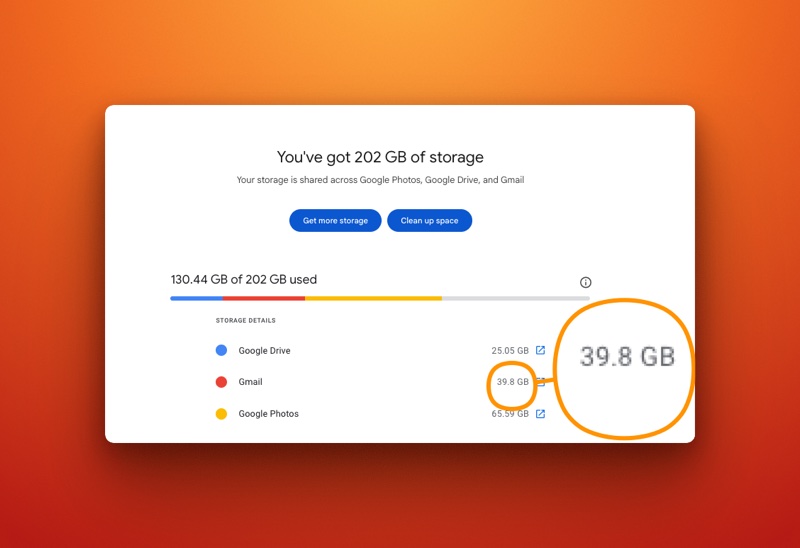
Running out of Gmail storage is almost a rite of passage for every long-time Google user. One day, everything is fine. The next, Google slaps you with a “Storage Full” notification, informing you that your inbox, Drive, and Photos are maxed out—and the path of least resistance is to cough up cash for a paid Google One subscription.
Before you pull out your credit card, we’re sharing a lesser-known, fully supported workaround that can help you reclaim your original 15GB of free Google storage, without the tedious process of deleting important emails or files one-by-one.
It takes a bit of setup and a careful step-by-step approach, but once done correctly, this method is the most effective free storage reset you can do.
Why Your 15GB Vanished Faster Than Your Paycheck
Understanding the culprit is key. That 15GB of free space is not just for your Gmail inbox. It’s shared storage across your entire Google ecosystem:
- Google Drive files and backups (documents, spreadsheets, etc.)
- Google Photos high-resolution backups (if you didn’t switch to the storage saver option)
- Large email attachments accumulated over years of use.
For long-time users, especially those who have used Gmail for work, school, or extensive online registrations, this shared storage can quietly max out without a proper warning.
Google’s official fix is Google One, which starts at around ₱1,400+ per year for 100GB. But what if there was a free, long-term alternative?
The Core Idea: The “Archive Vault” Strategy
This method works by essentially turning a second Gmail account into a long-term, free storage vault. We will use Gmail’s existing POP (Post Office Protocol) import tool to transfer old, bulky emails from your original account to the new one.
Once the emails are safely transferred, they are automatically removed from your original inbox, instantly freeing up massive amounts of storage space.
You keep your emails—you just store them in a secure, second location.
Step-by-Step Guide: Resetting Your Gmail Storage
CRITICAL WARNING: Do Not Skip Step 1. Before making any account changes, you must establish a safety net.
Step 1: Create a Full Data Backup (The Safety Net)
To secure your data against any unforeseen error, create a complete backup.
- Go to Google Takeout.
- Select Gmail, Google Drive, and Google Photos (if you suspect it’s the main storage hog).
- Download the archive to your computer or an external drive.
Tech Patrol Note: Depending on your data size, this process can take several hours or even a full day to prepare. Be patient, and do not proceed until you have this archive file.
Step 2: Prepare Your Original Gmail Account for Export
We need to tell your original (full) Gmail account to enable the transfer and then delete the emails once the transfer is confirmed.
- Log in to your main, storage-full Gmail account.
- Click the gear icon (top-right corner) and select See all settings.
- Open the Forwarding and POP/IMAP tab.
- Under POP download, select Enable POP for all mail.
- Crucially: Under “When messages are accessed with POP,” select Delete Gmail’s copy.
- Save Changes.
This setting is the “hack.” It instructs Google to delete the email from the source (your main account) after the new account confirms it has successfully copied it. This is what frees up the space.
Step 3: Set Up Your Archive Vault Account
Create a new, completely fresh Gmail account. This will be your Email Storage Vault.
- Once logged into the new archive account, go to Settings > See all settings.
- Open the Accounts and Import tab.
- Under “Check mail from other accounts,” click Add a mail account.
- Enter your original Gmail address.
- Choose Import emails from my other account (POP3).
- You will be prompted to enter your original Gmail password. (If a security block appears, you may need to generate an App Password from your main Google Account security settings and use that instead.)
Step 4: Configure the POP Transfer Settings
When prompted for advanced settings, ensure these specific options are selected for a clean, efficient transfer:
| Setting | Selection | Purpose |
| Port | 995 | Standard secured POP connection. |
| Use secure connection | Selected (SSL) | Encrypts the transfer. |
| Label incoming messages | Selected | Helps you easily identify archived emails in the new account. |
| Archive incoming messages | Selected (Skip the Inbox) | Keeps the new account’s inbox clean. |
Once confirmed, start the transfer. This is where you grab a coffee—the process can take anywhere from a few minutes to several hours, depending on the volume of emails being moved.
Step 5: Clean Up and Shut Down the Process
Once you confirm that the emails are safely stored in the new archive account (check the labeled folder), it’s time to finalize the storage reset:
- Empty the Trash folder in your original Gmail. (The deleted emails from the transfer land here, and must be emptied to free the space.)
- To stop any future automatic transfers: Go back to the archive account’s Accounts and Import settings and Remove the linked original Gmail account.
Your main inbox will now be reset, with your 15GB of free storage instantly restored.
Tech Patrol Verdict: Is This a Smart Move?
Google doesn’t openly advertise this as a “storage reset” path, but it is a fully supported function of Gmail’s POP tools. The risks are minimal if you don’t skip the backup.
For users who rely heavily on Gmail and Drive for their primary use and want a long-term, zero-cost solution to the storage limit, this method is one of the smartest and most robust storage resets you can perform. It’s digital decluttering executed using native tools—not a shady loophole.
If you have a vintage Gmail account that’s been collecting data for a decade or more, this is your best option to beat the paid subscription push.

