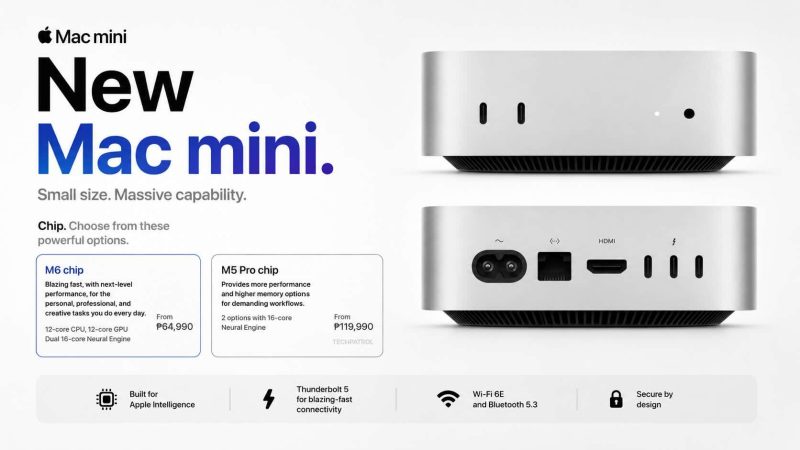
When I first set up my new M4 Mac Mini last week, it felt like meeting an old friend in a brand-new form.
I’ve been using Macs for decades – from the early Intel-based MacBooks to the latest MacBook Air models, including the M1 and M2 series. But this tiny silver box surprised me.
I primarily purchased it for its 16GB RAM, its incredibly compact size, which fits perfectly on my minimalist desk setup, and its ability to run multiple monitors effortlessly – something I’ve always wanted for my daily writing, editing, and research workflows.
Yet, as I configured it, I realized something humbling: despite all my years on macOS, I had overlooked many hidden features, shortcuts, and tiny hacks that could make my workflow even smoother.
Today, I want to share the Mac tips I rediscovered (and newly learned) while setting up my Mac Mini M4 – tips that might rekindle your love for your Mac, whether you’re a new user or a veteran like me.
- Screenshots & Screen Recording: Faster Than Ever
- When Apps Freeze: The Mac Way to Force Quit
- Quick Look: The Spacebar Magic
- Spotlight Search: More Than Just Files
- Organising Desktop Chaos with Stacks
- Focus on One App Instantly
- Hot Corners: Small Tweaks, Big Productivity Gains
- Dock Customisation: Making It Truly Yours
- Widgets: Your Desktop’s Secret Weapon
- Two Apps I Can’t Live Without Now
- Final Thoughts
Screenshots & Screen Recording: Faster Than Ever
I’ve always known the basic screenshot shortcut. But with the M4 Mac Mini, I rediscovered Command + Shift + 5.
It brings up a full-screen capture and recording toolbar where you can:
- Take a screenshot of an entire screen, window, or custom area.
- Record your entire screen or just a section – perfect for tutorial videos or quick social media demos.
- Choose where to save captures (I prefer Desktop for quick access) and set timers if needed.
This tiny shortcut alone made preparing my tutorial thumbnails and screen demos much faster last week.
When Apps Freeze: The Mac Way to Force Quit
Even the fastest Mac can experience a frozen app occasionally. I’ve always used Command + Option + Escape, but I realised you can also:
- Option + Right-click an app icon in the Dock and select Force Quit instantly.
It’s such a quick way to regain control without interrupting my workflow – especially when multitasking across multiple monitors.
Quick Look: The Spacebar Magic
For years, I underused Quick Look. Select any file and press Spacebar to preview it without opening the app. Whether I’m checking screenshots, PDFs, or product images for the blog, it’s the fastest way to scan files at a glance.
Press Spacebar again to close the preview. It feels like a built-in productivity superpower I wish I used earlier in my career.
Spotlight Search: More Than Just Files
Last night, while drafting a tech article comparing prices across currencies, I remembered Spotlight can convert units and currencies instantly.
Press Command + Spacebar and type:
- “30 USD to PHP” for real-time conversions.
- “5.5 ft to cm” for quick measurements.
- Equations like “250 * 16” if your calculator app isn’t open.
Spotlight isn’t just a search tool – it’s a silent assistant that saves precious seconds throughout the day.
Organising Desktop Chaos with Stacks
I admit it: my Desktop often becomes a dumping ground of screenshots, invoices, draft images, and random files. Stacks changed that overnight.
- Right-click the Desktop, select Show View Options, then under Stack by, choose Kind.
All similar files instantly group into neat, collapsible stacks – screenshots together, PDFs in one pile, and so on. It’s like having a personal digital organiser with zero effort.
Focus on One App Instantly
One of the simplest yet underutilized tips is to use Option + Click on any app in your Dock. It minimises all other apps, focusing your workspace on just that app – perfect for writing sprints or editing tasks without distractions.
Hot Corners: Small Tweaks, Big Productivity Gains
I’ve always used Hot Corners casually, but this time I set them up with intention:
- Top-right corner: Lock Screen
- Bottom-right corner: Show Desktop
To prevent accidental activation, I held Control while assigning them. Now, my productivity feels seamless, and my security is just a flick away whenever I step out.
Dock Customisation: Making It Truly Yours
I spent an hour tweaking my Dock, but it was worth it:
- Adjusted icon size and enabled Magnification so apps enlarge smoothly on hover.
- Changed Dock position to the left for ergonomic mouse movement.
- Turned on Auto-hide for a clean workspace.
- Created custom separators by making empty folders, assigning them transparent PNG icons, renaming with
.app, and dragging them into the Dock. Now, my apps are grouped clearly – writing, editing, and communication, each in its zone.
Widgets: Your Desktop’s Secret Weapon
I never cared about widgets until I tried them on the M4 Mac Mini. Now, my desktop displays:
- Weather updates for planned shoots or events.
- Calendar appointments at a glance.
- Battery status of my accessories.
Just go to System Settings > Desktop & Dock > Widgets, enable it, then right-click your Desktop to add or edit widgets. You can even use iPhone widgets if connected to the same Apple ID.
Two Apps I Can’t Live Without Now
While optimising my setup, I reinstalled my essentials:
- CleanMyMac: Cleans up ghost files, optimizes memory, scans for malware, and displays CPU usage – crucial for keeping the Mac Mini running cool and efficiently.
- Shottr: My new favourite screenshot and annotation tool. Unlike the built-in macOS screenshot tool, Shottr is incredibly lightweight, lightning-fast, and packed with features like scrolling screenshots, pixel measurements, and instant text recognition (OCR). It’s perfect for my tutorials, website guides, and quick visual notes throughout the day.
See also: Optimize Your New Mac: Essential Settings and Tips (2025)
Related: Why “Open in Preview” is the Smarter Way to Save PDFs on Your Mac
Final Thoughts
I didn’t think a Mac could surprise me after all these years.
But the M4 Mac Mini proved me wrong.
Its powerful specs, tiny footprint, and support for multiple monitors make it an ideal workhorse. Yet it’s these little features – shortcuts, Dock tweaks, Quick Look, Spotlight – that turn macOS from just another operating system into a personal productivity partner.
If you’re a long-time Mac user like me, don’t think you know everything. Take a few minutes to explore these tips.
They might transform the way you work tomorrow.